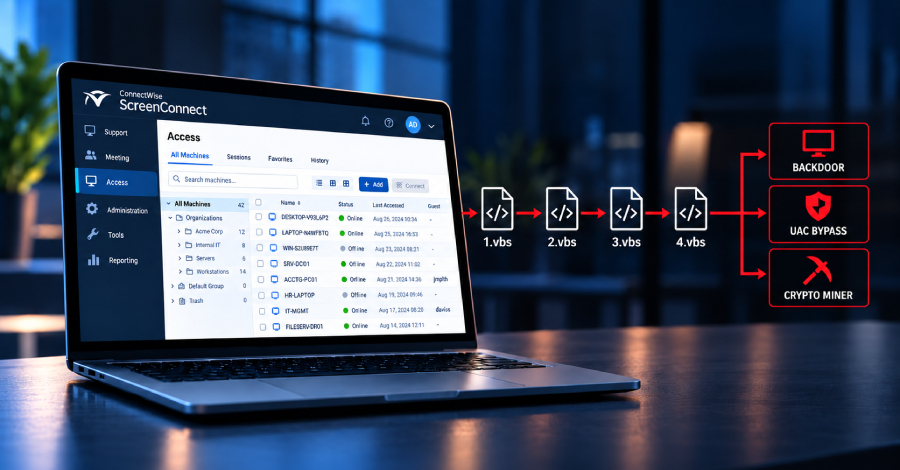
Cybersecurity researchers have disclosed details of worm-like activity that abuses ConnectWise ScreenConnect to distribute a malicious Visual Basic Script (VBScript) payload to newly connected systems.
According to Huntress, three unrelated incidents have been found to use diverse initial access methods, namely a Quick Assist tech-support scam, a phishing-delivered MSI installer, and a fake Geek Squad refund form lure, to activate a four-stage VBScript chain that leads to rogue ScreenConnect installations.
However, once the ScreenConnect instances were installed, the cybersecurity company said it observed the clients repeatedly spawning "wscript.exe" to execute VBScripts named 1.vbs, 2.vbs, 3.vbs, and 4.vbs. The incidents were observed in August 2026.
The details of the three attacks are below -
- A social engineering attack that persuaded a user into executing Quick Assist as part of a tech support scam, after which a rogue ScreenConnect remote access client was deployed to contact a command-and-control (C2) server located at "45.13.237[.]190" ("tele-sync.opik[.]net"). Hosted on the IP address is a RAR archive containing the four VBS files.
- An MSI installer ("ScreenConnect.ClientSetup.msi") likely delivered via a phishing attack that deployed a ScreenConnect client configured to communicate with "131.123.40[.]98" on port 8041. The rogue ScreenConnect almost immediately launched the four VBScript files from the ScreenConnect temporary directory.
- A search for a Geek Squad refund form led to the deployment of a rogue ScreenConnect client ("ScreenConnect.Client.exe"), which then connected to "borertors92.anondns[.]net." The session then uses "wscript.exe" to execute the four VBS scripts from the Temp folder.
Across these incidents, the attack sequence is said to have followed a four-step process, with each VBScript launching the next and allowing it to progress further -
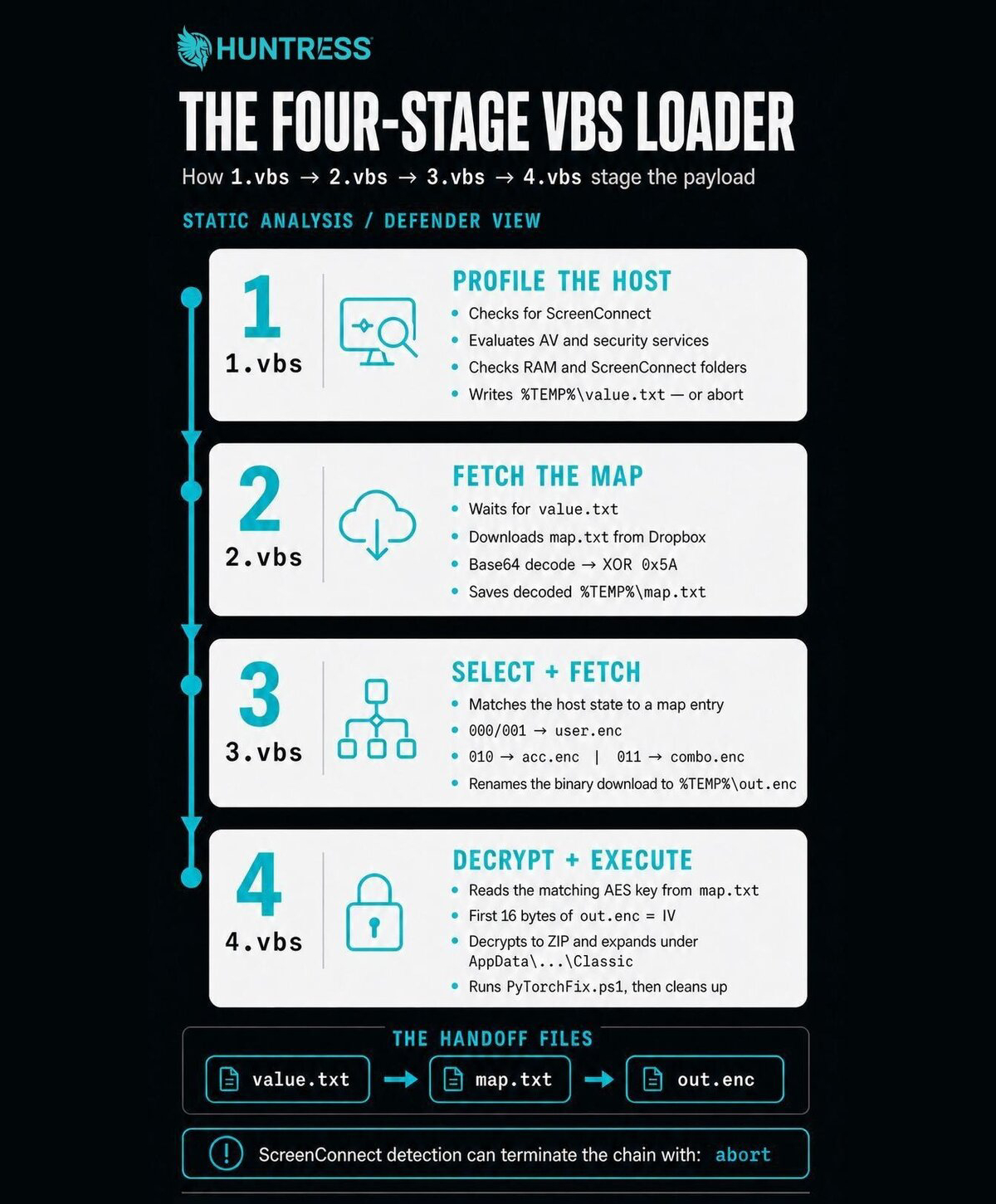
- 1.vbs, which profiles the host, checks system resources (e.g., if RAM is over 5 GB), verifies if ScreenConnect is installed, enumerates security products, including Cisco AMP, CrowdStrike, Huntress, Malwarebytes, SentinelOne, Sophos, and Symantec Endpoint Protection, and writes the results of these checks to "%TEMP%\value.txt" in the form a three-bit state variable. For example, the state value "000" indicates no existing ScreenConnect installation, the presence of third-party security processes, and no ScreenConnect clients are installed within the Program Files folder.
- 2.vbs, which waits for the "%TEMP%\value.txt" file and checks for the presence of the word "abort." If the word does not exist, it downloads a file from Dropbox, decodes its contents, and writes them to "%TEMP%\map.txt." While the text file contents are not executed, the exact nature of the payload retrieved is unclear, as the Dropbox URL is no longer online as of September 2, 2026.
- 3.vbs, which works similarly to 2.vbs by waiting for "%TEMP%\map.txt" and then proceeds to download the relevant file from the Dropbox link specified in the text file based on the state values set by 1.vbs in "%TEMP%\value.txt" and writes it to "%TEMP%\out.enc."
- 4.vbs, which waits for the presence of the downloaded "%TEMP%\out.enc" payload and launches a PowerShell script ("%TEMP%\runner.ps1") to decrypt the contents of "%TEMP%\out.enc," write them to "%APPDATA%\Microsoft\Windows\Templates\Classic\sys_cache.zip," and execute a second-stage PowerShell script ("PyTorchFix.ps1").
At least three different payloads have been detected based on the state value -
- 000 and 001 lead to a user-level ScreenConnect backdoor
- 010 leads to tooling for privilege escalation via a User Account Control (UAC) bypass and persistence
- 011 leads to tunneling utilities and a cryptocurrency miner
In addition, "%TEMP%\runner.ps1" takes steps to terminate every "wscript.exe" or "cscript.exe" process, and deletes the staging directory after the final stage is run. The 4.vbs script also writes the four VBScript files to "C:\Users\Public\Libraries\Default\Lib\Lib1" if the value in "%TEMP%\value.txt" is set to 010 or 011.
This, in turn, triggers a round of payload deliveries, effectively turning the compromised host into a content-delivery mechanism for the malicious scripts every time the backdoored client observes a new Host connection.
"This creates a worm-like behavior: propagating infections over new ScreenConnect connections. Connecting to an infected ScreenConnect client can cause the server-side Host system to receive and execute the same four-stage VBScript chain," Huntress said. "Later, the client records each ConnectionID to avoid repeatedly targeting the same active session, but then removes that identifier after it disconnects – allowing a later reconnection to trigger the infection again."
"The incidents share additional indicators, including a WindowsServiceHost User Run Key pointing to WindowsServiceHost.vbs in the user's AppData directory," Huntress said, adding it observed other remote monitoring and management (RMM) tools, including UltraViewer, on some impacted hosts.
On the other hand, the state value branch "011," which translates to: (1) no existing installation of ScreenConnect on the system, (2) Microsoft Defender is the only the endpoint protection program installed on the machine, and (3) no ScreenConnect clients are present, includes payloads to disable Microsoft Defender reporting, turn off Windows memory integrity, and runs an XMRig cryptocurrency miner.
"Considering the extent and complexity of these attack chains, the Huntress SOC made strong recommendations that these affected hosts be re-imaged from known-good media, or a clean operating system install," Huntress said.
In response to the findings, ConnectWise has issued an advisory, stating it has identified an issue affecting file transfer behavior in ScreenConnect Remote Access Support and Access sessions. The issue, it added, impacts both Cloud and On-Premise deployments.
Until a fix is in place, customers are recommended to mitigate the risk by disabling the ability for technicians to transfer files -
- Log into the Administration page of ScreenConnect instance or installation.
- Navigate to the Administration > Security > Roles section.
- Edit a role that is assigned to users.
- Review each session group that has permissions assigned to it.
- For each session group, in the Scoped Permissions window, check if the TransferFiles permission (or TransferFIlesInSession for legacy versions) is selected. If it is, deselect it.
- Save changes to the role.
- Repeat for each role that's defined in the instance or installation.